
Get an account and look around
The Brume console is where you order storage and follow your billing. This page takes you from your application to a working account.
Apply for an account
Brume is for companies, and every account is reviewed by a person. On the sign-in page, click Apply for one, then fill the form:
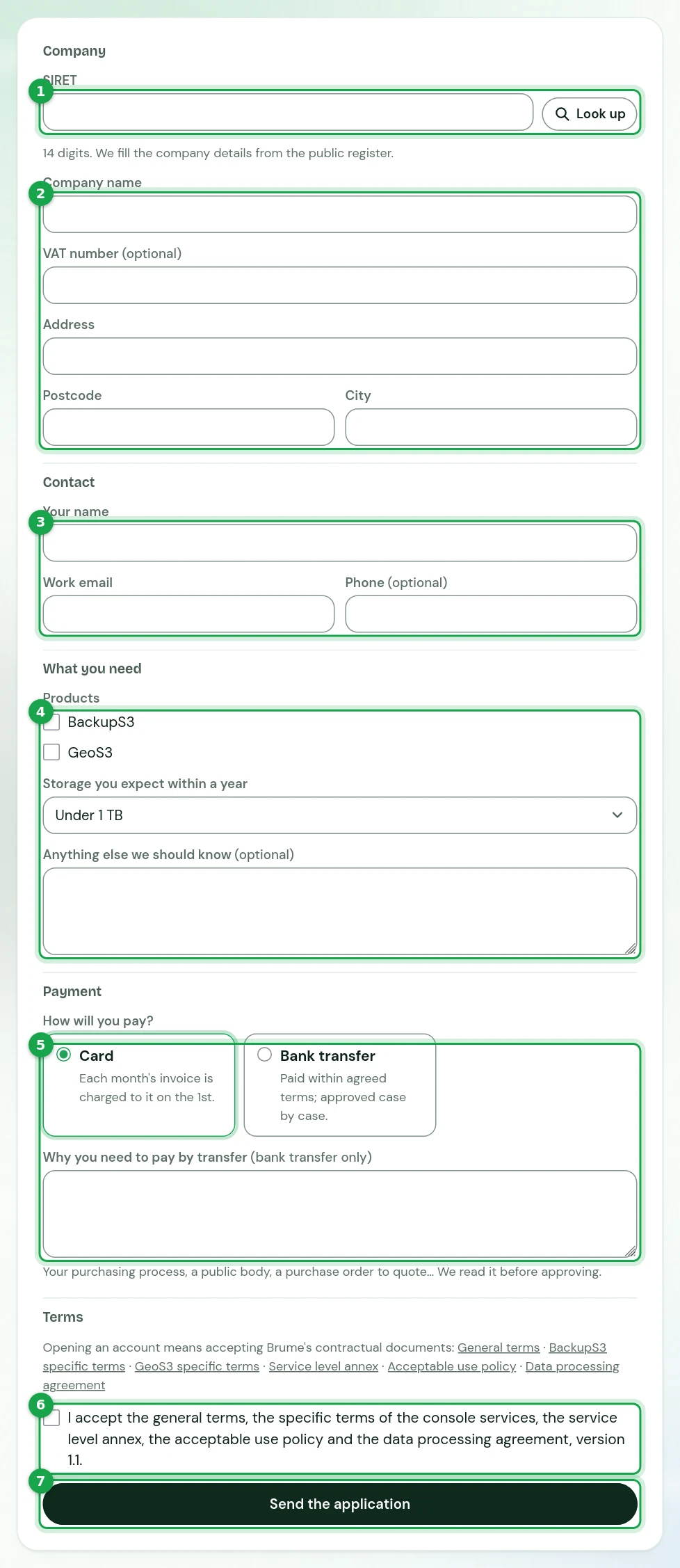
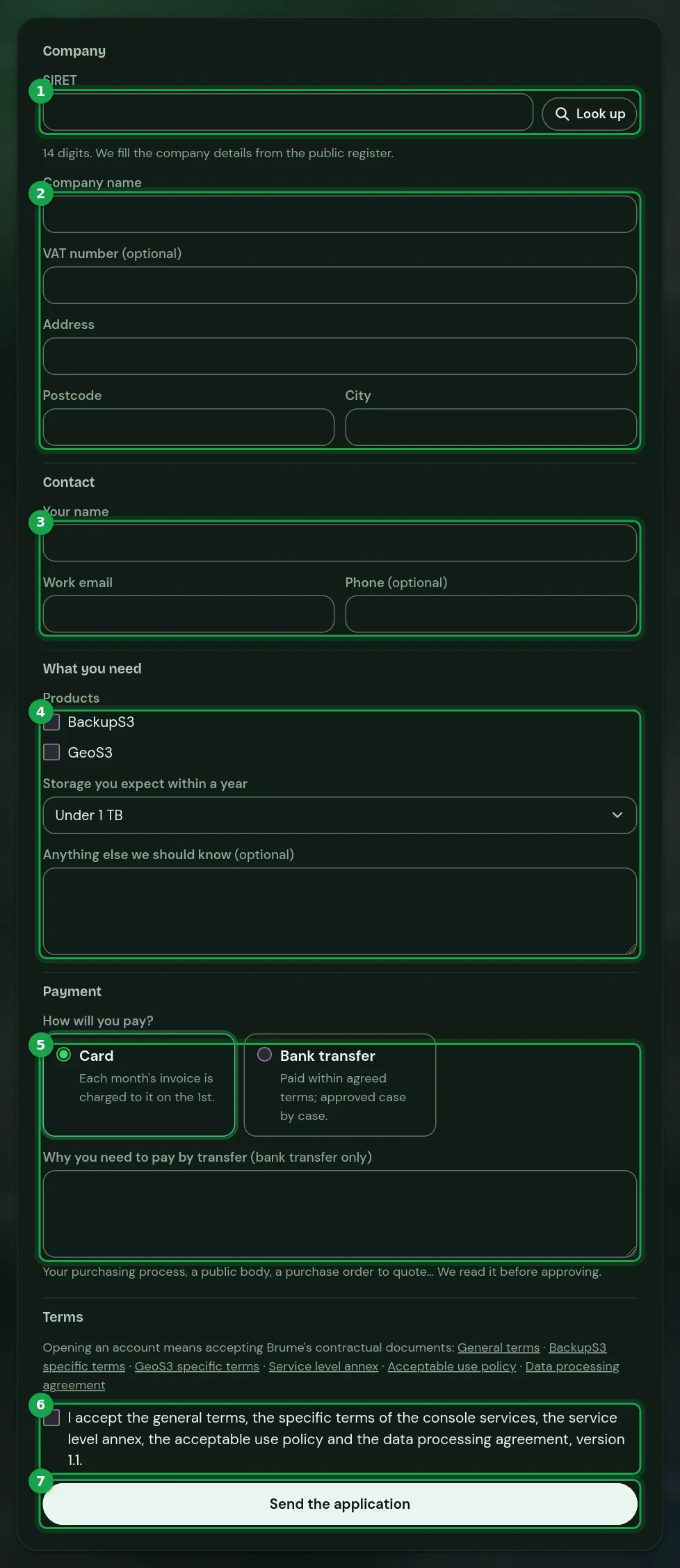
- Type your company's SIRET and click Look up: the company name and address are filled from the public register. Check them, or fill them by hand if the register cannot be reached.
- Add the VAT number if you have one.
- Say who you are: Your name, Work email and, if you like, a phone.
- Tick the Products you are interested in and the Storage you expect within a year.
- Choose how you will pay: Card, the usual case, or Bank transfer. For a transfer, say why you need it (a purchasing process, a public body…): we read it before approving, and may approve the account for card instead.
- Read and accept the contractual documents: the general terms, the specific terms of the console services, the service levels, the acceptable use policy and the data processing agreement. They are published in the Legal section, and your acceptance is kept with your application.
- Click Send the application. You get a reference; we answer by email, usually within two working days.
When your account is approved, you receive an invitation email. It says how the account pays, and its link opens Choose your password: pick at least 12 characters, then sign in with your work email and that password.
Forgot your password later? Click Forgot your password? on the sign-in page: if the address has an account, a link valid for one hour is emailed to it.
The contractual documents
Your application accepted the documents in force. When Brume publishes a new version, the console asks for it once more at your next sign-in, before any other page, and brings you back where you were going:
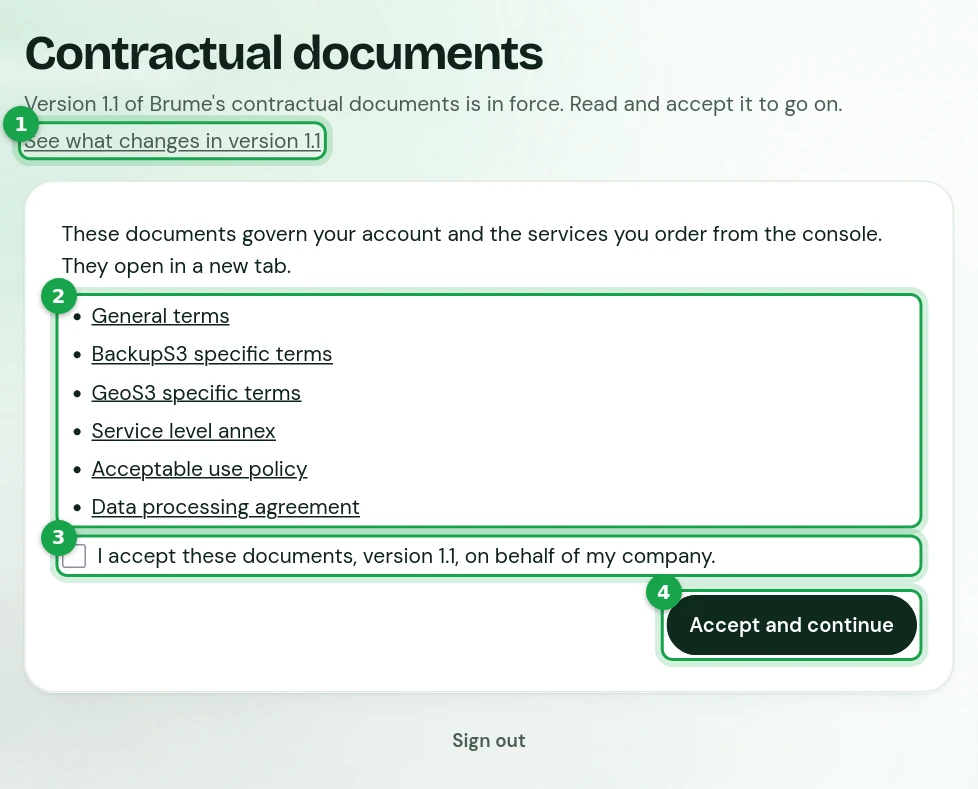
Every version you accepted is kept, with its date, for ten years. The documents themselves are in the Legal section, linked from the bottom of every page.
The console at a glance
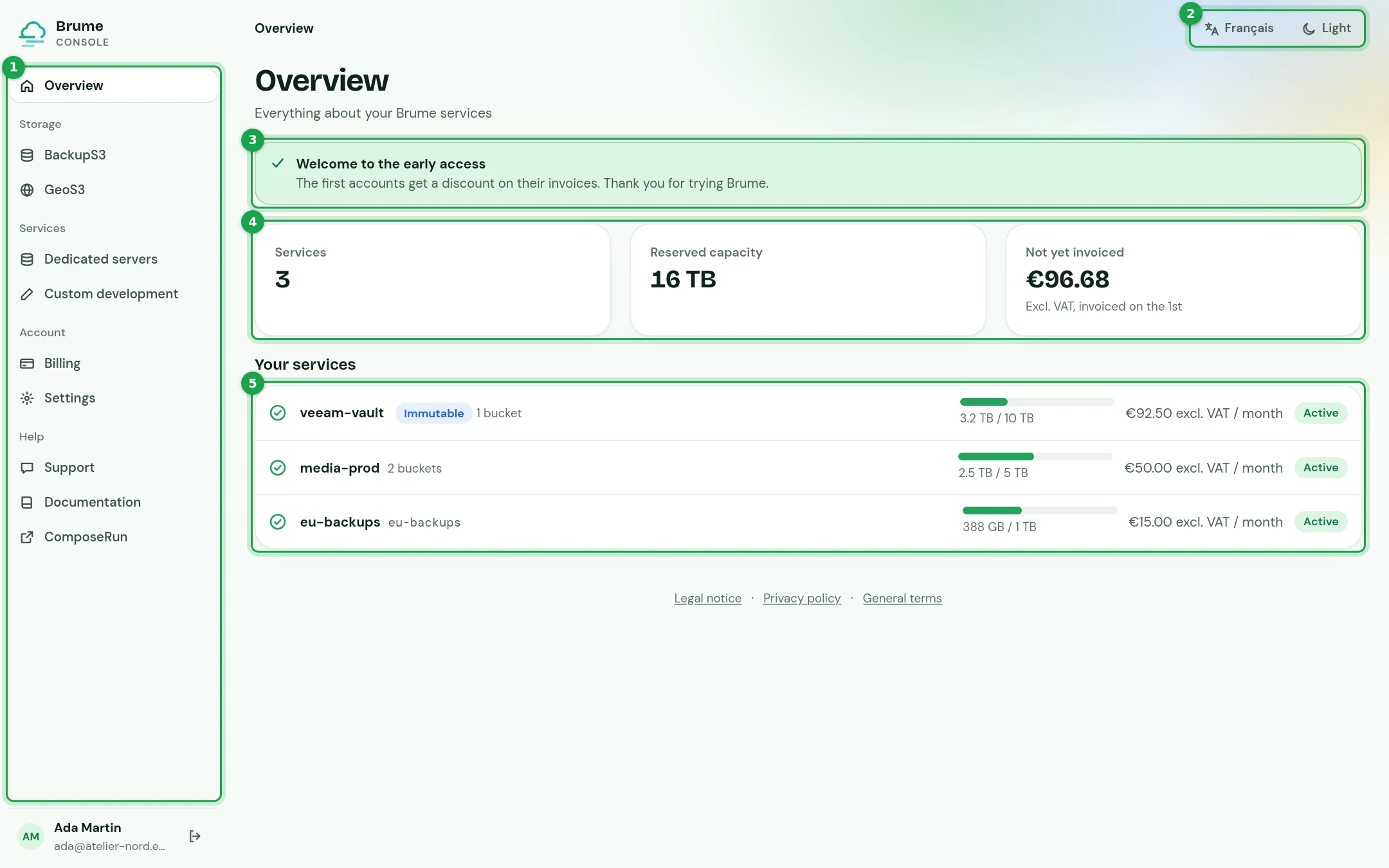
| Menu entry | What it is |
|---|---|
| Overview | Your services, the capacity you reserve and what is not invoiced yet. |
| BackupS3 | S3 storage built for backups, on one site; a service holds several buckets. See BackupS3. |
| GeoS3 | S3 storage replicated across three sites, one bucket per service. See GeoS3. |
| Custom development | Software built for your company, on a quote. See Custom development. |
| Billing | Your payment method, what is not invoiced yet, and your invoices. See Billing. |
| Settings | Your company details, your name and language, password and sessions. See Account settings. |
| Support | Report a bug, ask for a feature or a question; the team answers there. See Support. |
| Documentation | This site. |
| ComposeRun | Our partner's site. See ComposeRun. |
News from Brume, such as an offer, appears at the top of the overview. While Brume is in early access, a card at the bottom of the menu invites you to Share feedback: every message is read.
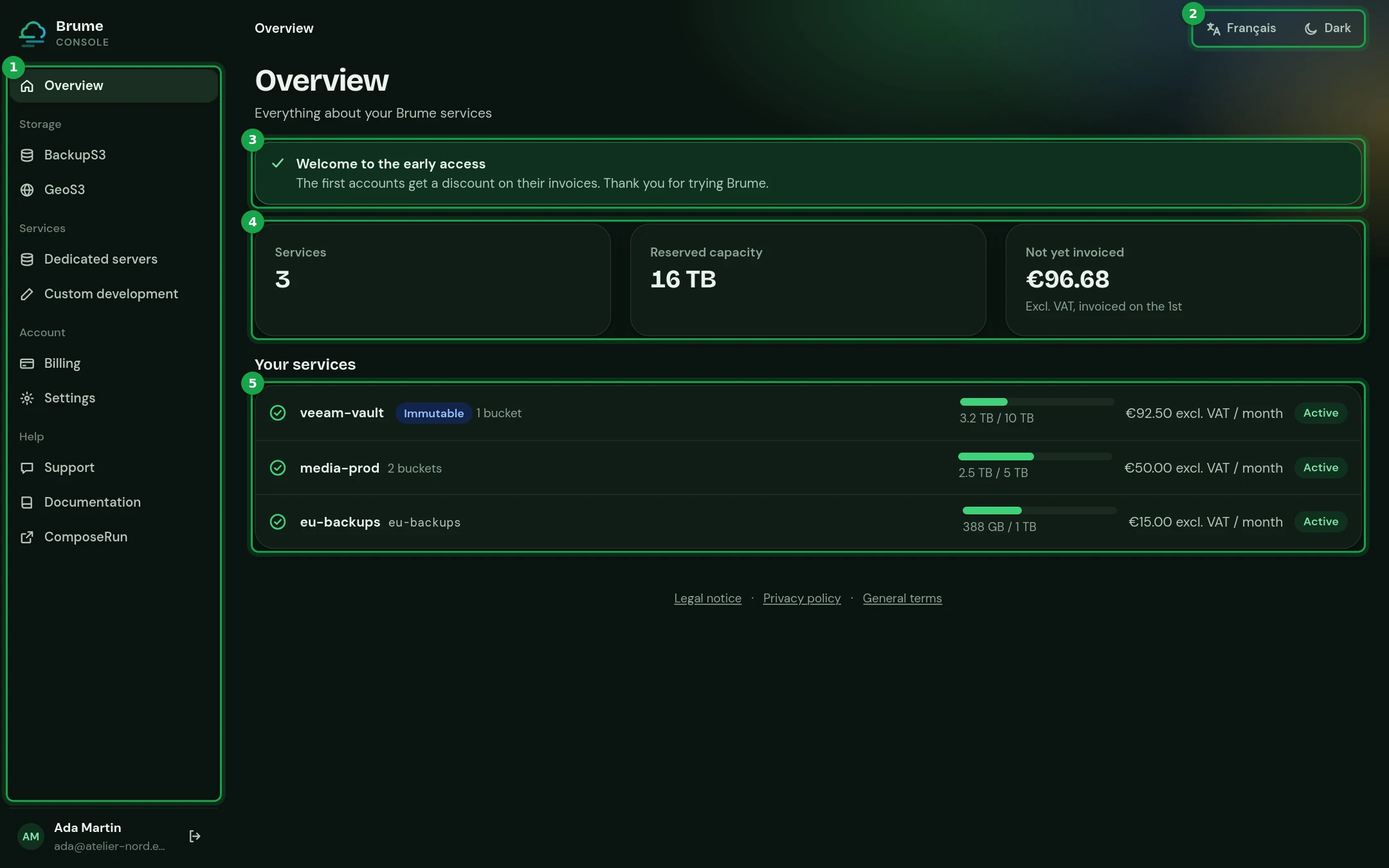
The top bar holds the language switch (Français / English) and the theme (Auto, Light, Dark). The sign-out button is next to your name at the bottom of the menu.
Before you order a service
A card account needs a card on file: each month is charged to it on the 1st. Until then the overview says No card on file.
- Open Billing.
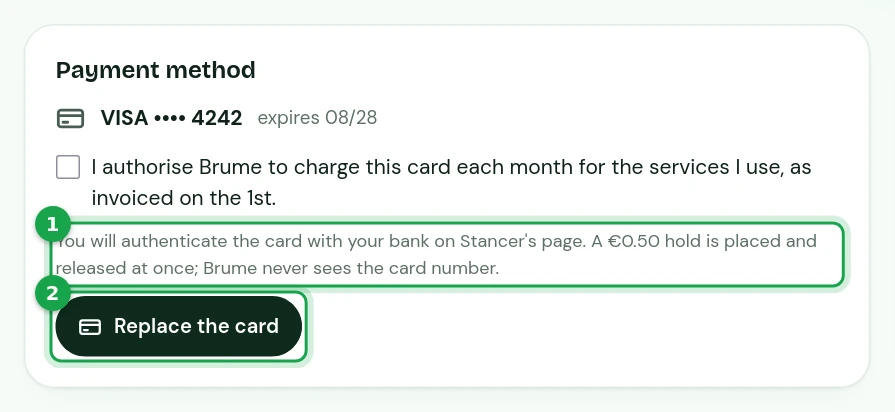
- Under Payment method, tick the authorisation and click Register a card.
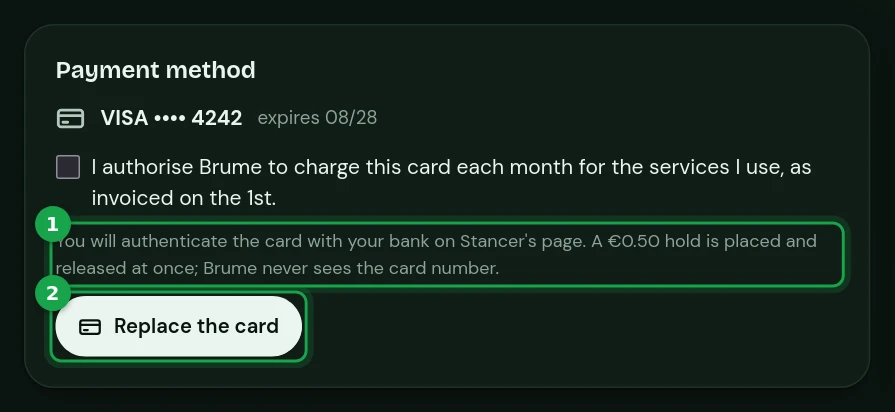
- Authenticate the card with your bank on Stancer's page. A 0.50 € hold is placed and released at once; Brume never sees the card number.
If your company was approved to pay by bank transfer, there is nothing to register: see Payment.
Next steps
- Create your first bucket and upload a file.
- Read how billing works before you size a service.