
Support
Found a bug, missing a feature, or have a question? Write to the Brume team from the console: the conversation stays in Support, and you are emailed when we answer.
Open a request

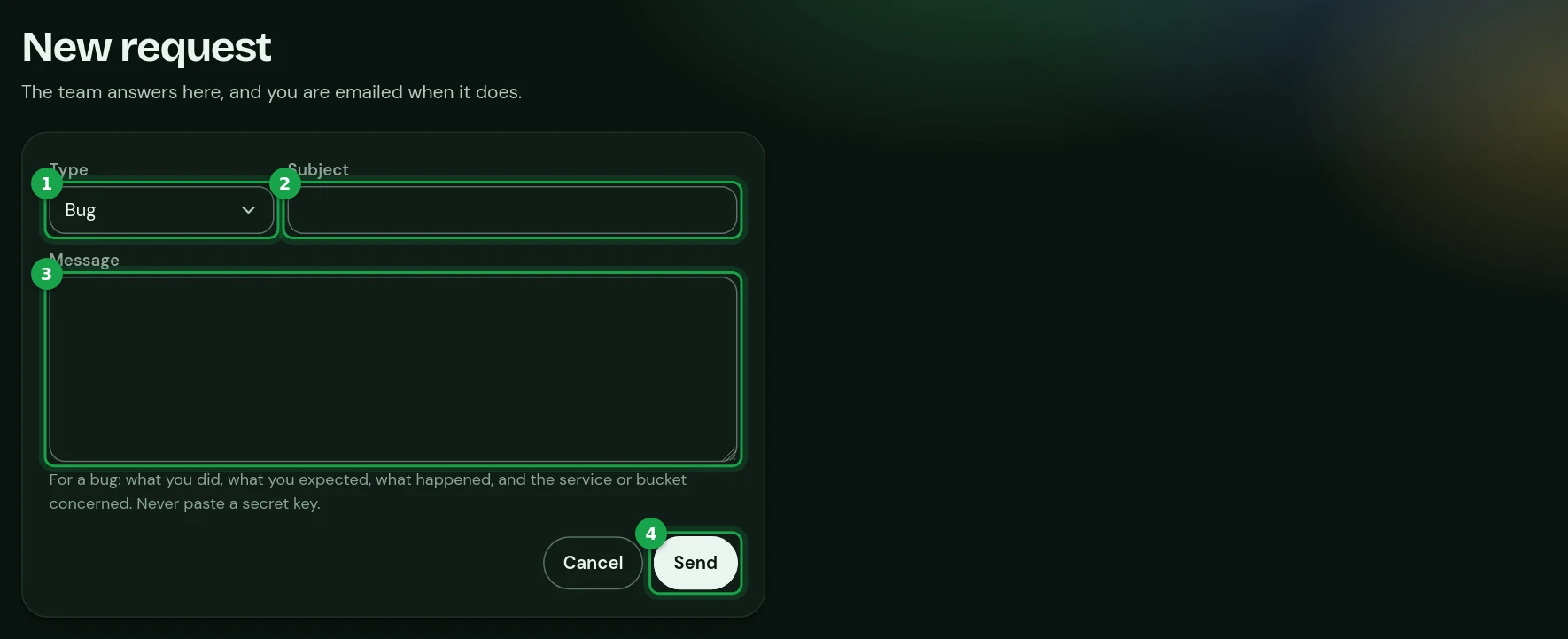
- Open Support in the menu, then click New request.
- Choose the Type: Bug, Feature request, Question, Billing, Quote (for custom development; a dedicated server quote is sent from the simulator) or Feedback.
- Give a one-line Subject.
- Write your Message. For a bug, say what you did, what you expected, what happened, and the service or bucket concerned.
- Add Screenshots if they help: up to 3 PNG, JPEG or WebP images, 3.5 MB each. A reply can be screenshots alone.
- Click Send.
Never paste a secret key in a message, nor show one in a screenshot: we never need it. Screenshots are seen only by your account and the Brume team.
Follow the conversation
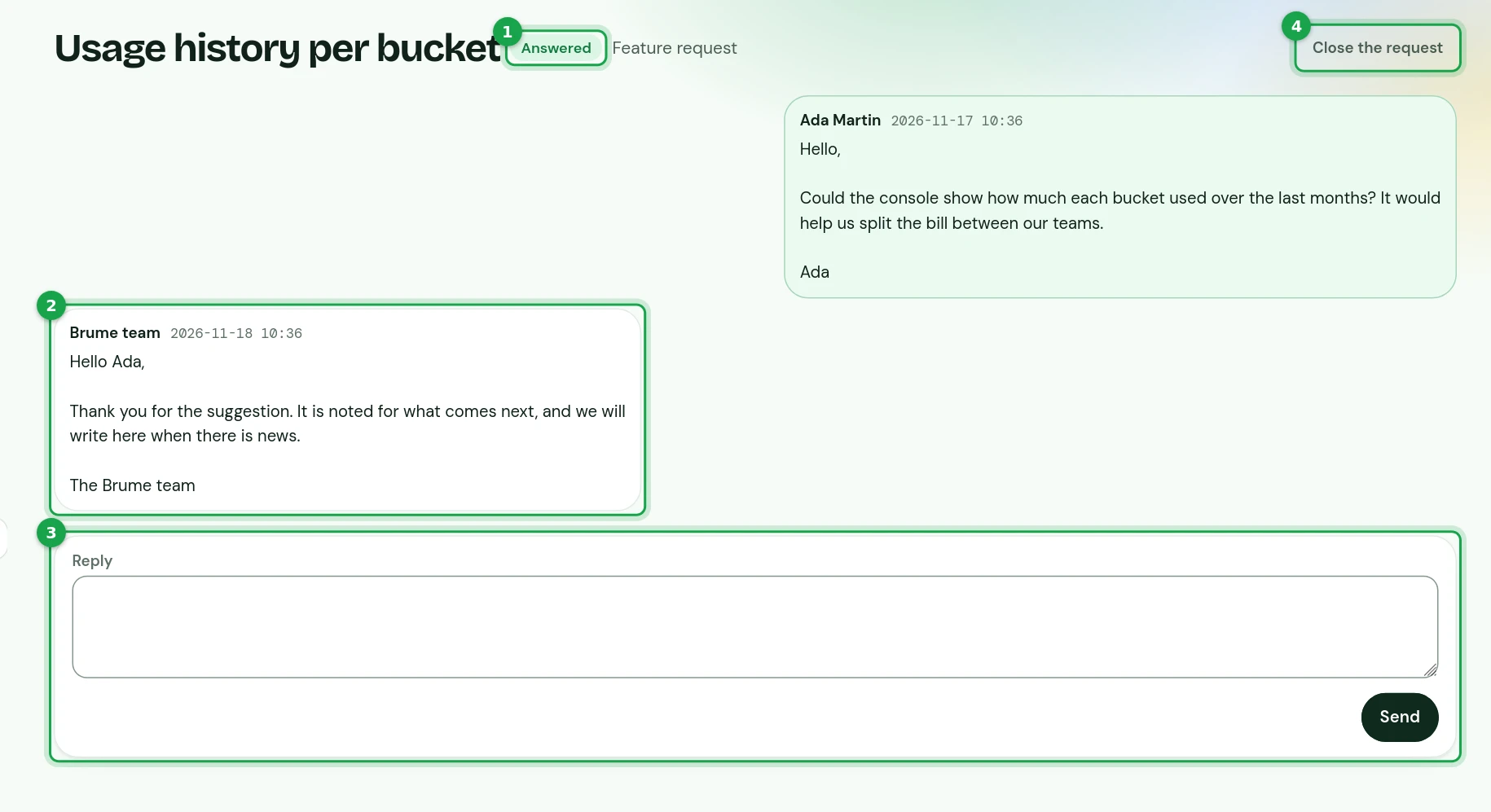
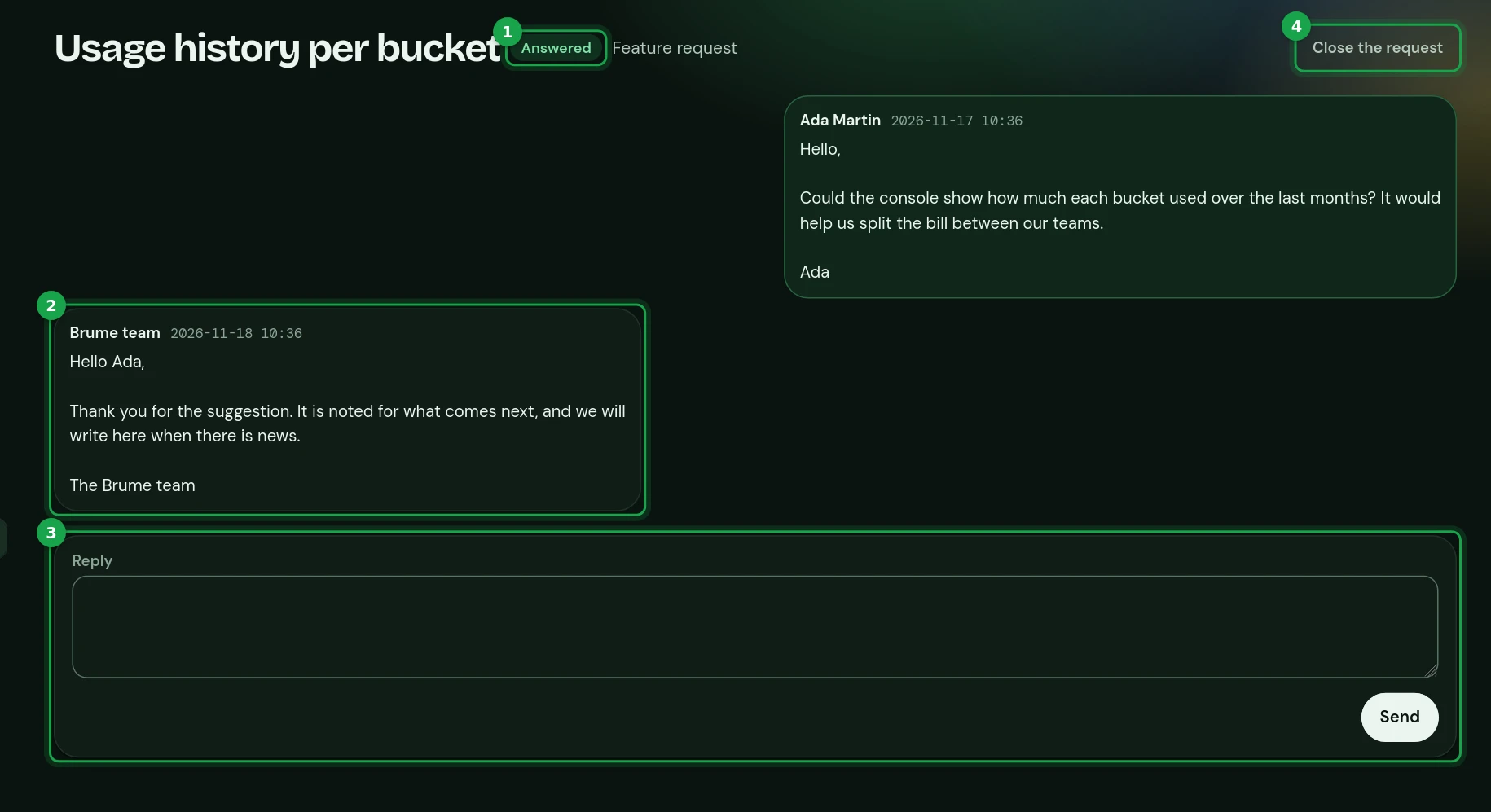
The request shows every message, oldest first. Its status says whose turn it is:
| Status | Meaning |
|---|---|
| Waiting for Brume | We have not answered your last message yet. |
| Answered | The team replied. You received an email saying so; the answer itself is only in the console. |
| Closed | Nothing more to do. Writing in it again reopens it. |
To add something, type in Reply and click Send. Click Close the request once it is settled.
An account can send ten messages an hour, across its requests.
Sharing feedback
While Brume is in early access, a card at the bottom of the menu says so. Its Share feedback button opens a new request with the Feedback type already chosen: tell us what works, what doesn't, and what you miss.
You can still write to contact@brume-cloud.com.