
File explorer
The console includes a file explorer for both BackupS3 and GeoS3. Use it to browse a bucket, upload and download files, and edit small text files without installing an S3 client.
At a glance
| What | Limit |
|---|---|
| Upload size | 5 TB per file, the S3 maximum: files go straight to the cluster. Over 32 MB they are sent in parts. |
| Download several files as a zip | 200 files and 1 GB per zip |
| Move a folder | 200 files |
| Edit a text file in place | 1 MB |
| Delete a folder | Only when it is empty |
Open the explorer
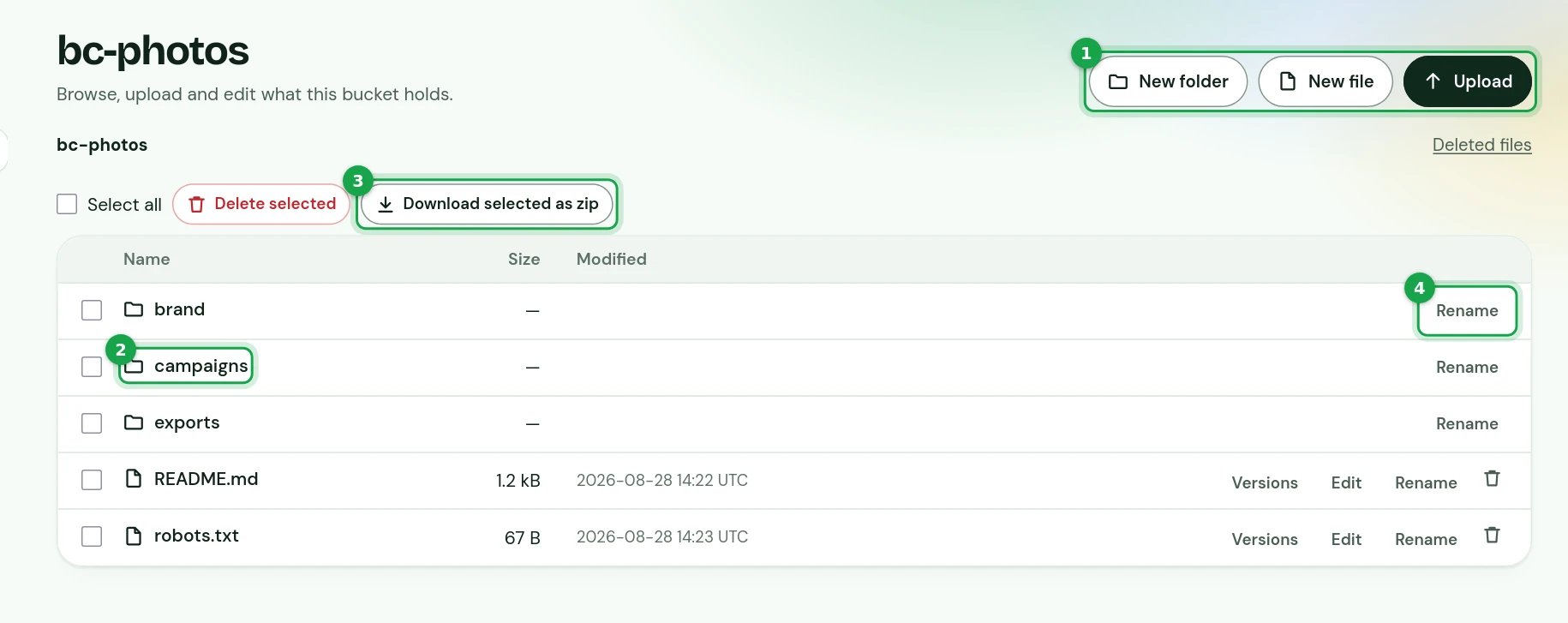
- BackupS3: open a service, then click Browse files on a bucket.
- GeoS3: click Browse files on a service.
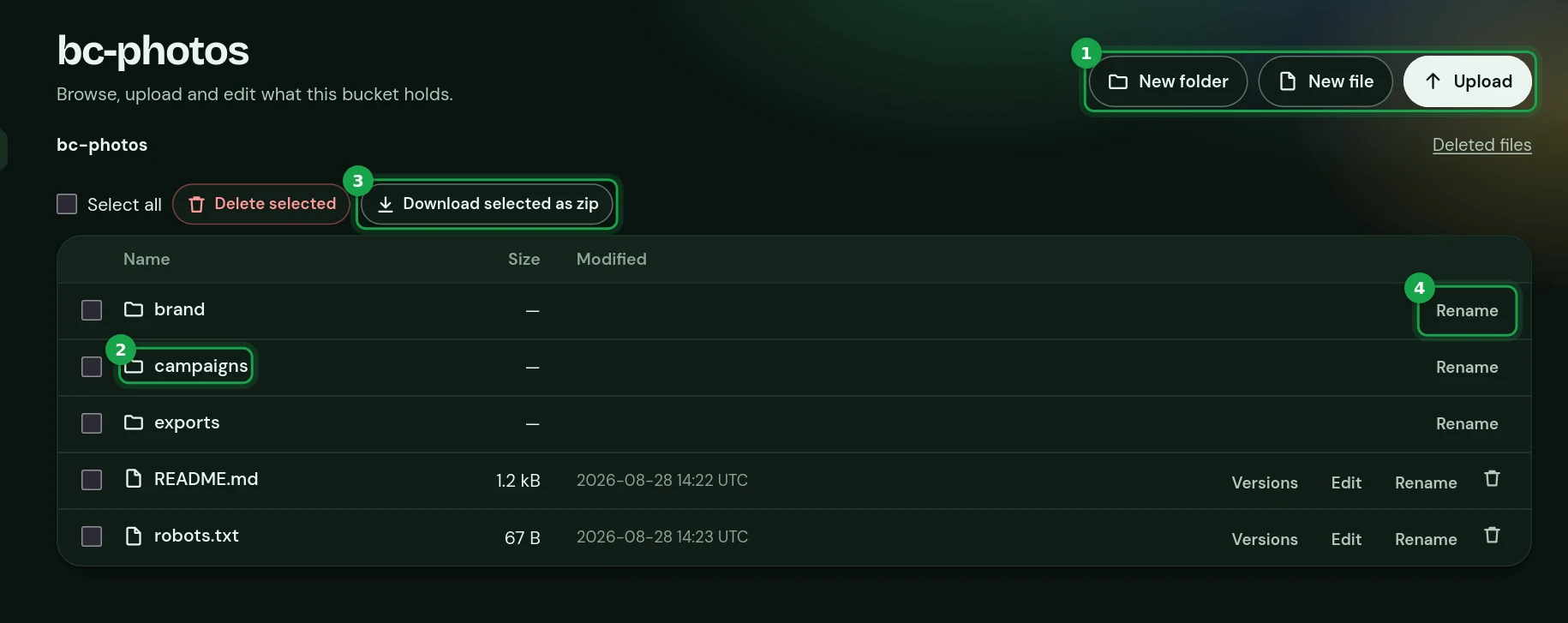
Folders are S3 prefixes. The explorer shows one folder at a time; the path bar above the list says where you are and takes you back up. A long folder is split in pages: Next page and First page.
Upload
Drop files onto the page, or click Upload.
Files travel directly from your browser to the storage cluster, not through the console. Large files (over 32 MB) are sent in parts, several at a time, and each part is retried on its own if the connection drops.
Download
Click a file's name to download it.
To download several files or folders at once, tick them (or Select all) and click Download selected as zip. The zip is built in your browser, with at most 200 files and 1 GB. For more, use an S3 client such as rclone or Cyberduck.
Create, rename and move
- New folder creates a folder in the current one: in S3, a name ending with a slash.
- New file creates an empty file, which you can then edit or replace.
- Rename opens Rename or move: change the New path in the bucket. Changing its folders moves the item; a folder moves with everything in it, up to 200 files.
S3 has no rename operation, so renaming or moving copies the object and then deletes the original. Use an S3 client for larger folders, and for a file too large for the storage to copy in place.
Edit text files
Text files up to 1 MB open in a built-in editor with Edit (View when the service is read-only); Save writes it back. If the file changed on the cluster while you were editing it (for example from another tab), saving is refused rather than overwriting the other change.
Delete
Tick one or more items and click Delete selected, or use a file's bin icon, then confirm. Without versioning, deleted files cannot be recovered. With it, they stay as old versions: see below.
A folder can only be deleted once it is empty. Delete its content first.
Versions and deleted files
On a BackupS3 bucket with versioning on:
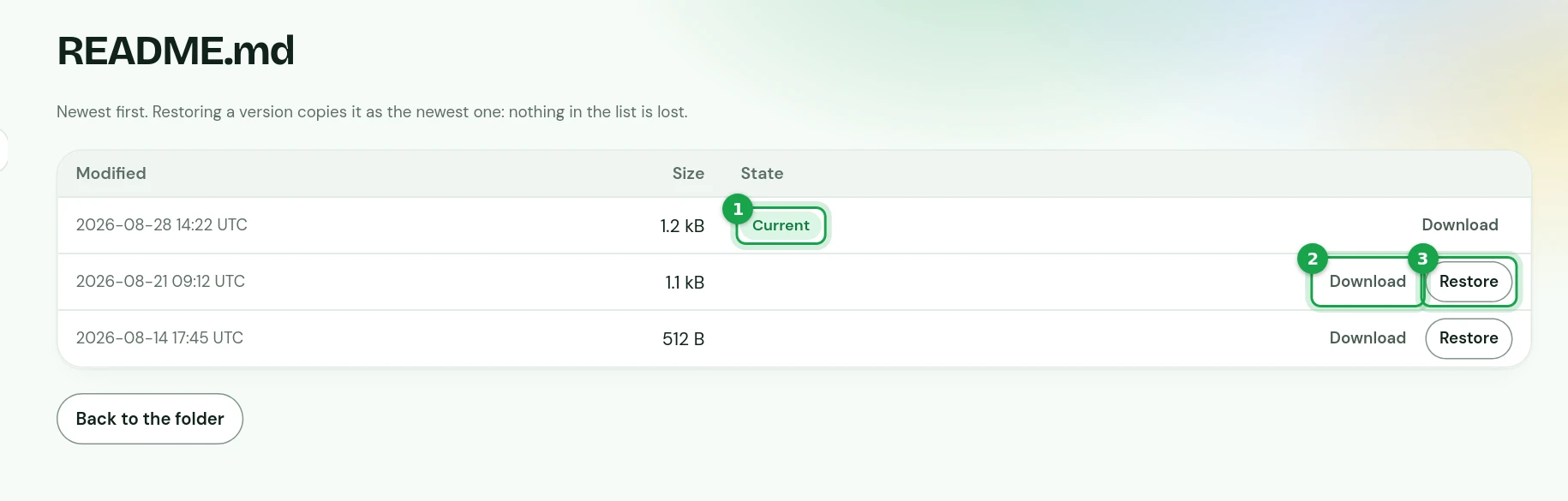
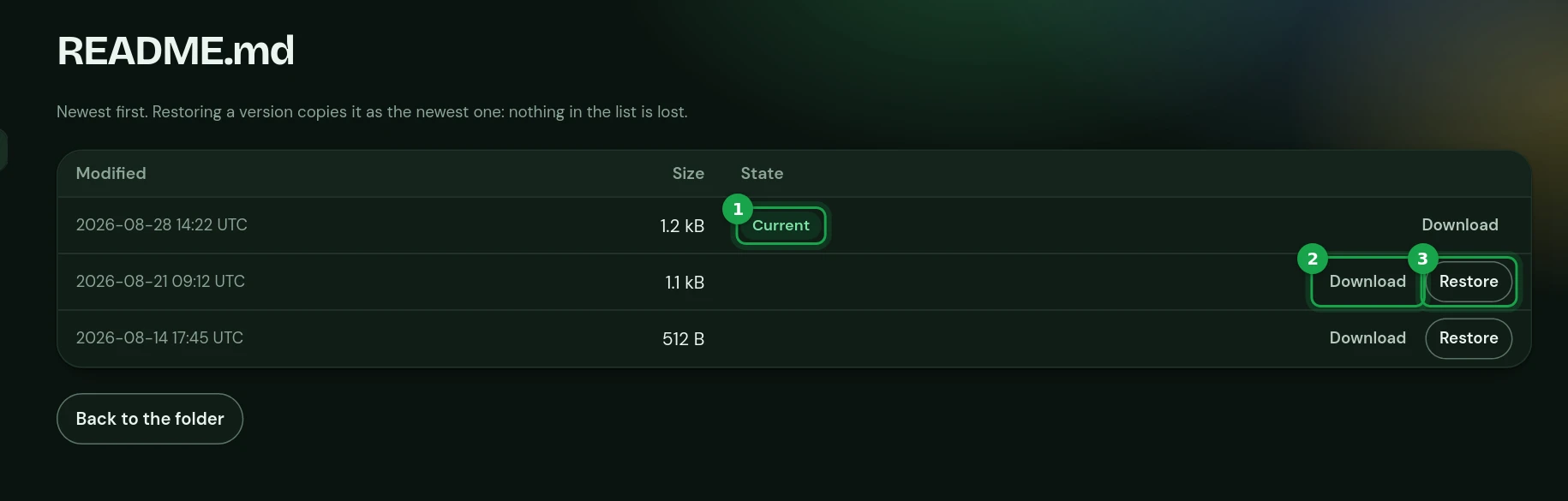
- Versions on a file lists its versions, newest first. Download any of them, or click Restore to make an old version the current one again. The restore is a copy: nothing in the list is lost. A file too large for the storage to copy in place cannot be restored this way: download that version and upload it again.
- Deleted files, above the list, shows the files deleted from the current folder that versioning still keeps. Restore brings a file back as it was before its deletion.
GeoS3 keeps no versions.
When the service is frozen
If the service is read-only or queued for deletion, the explorer still lets you browse and download your files, but uploads, edits and deletions are blocked. See Unpaid invoices.
An immutable BackupS3 service is always browse-and-download only: your backup tool writes to it. Its versions and deleted files can be listed and downloaded, not restored.
Troubleshooting
"Uploads from the browser are not available for this bucket right now": the cluster has not accepted the rule that lets a browser upload to the bucket yet. Browsing, downloading and editing still work. Try again later, or upload with an S3 client.